
Notes, Sign and Lock
Notes are where you keep the written record of your work with a client, from a first consultation to an ongoing session history. They can be simple free-form notes or structured ones built from a template, you can keep them private or share them with the client, and you can sign and lock the important ones so they become a permanent, tamper-proof record.
Where to find Notes
Open a client's dashboard and go to their Notes tab. Everything for that client lives here: the notes you have written, the ones you have shared with them, and any notes the client has written back to you.
Creating a note
Click New Note to start. You can write a plain note with a title and description, or you can build a structured note from a template.
Using note templates
Templates give your notes a consistent, professional shape so you are not starting from a blank page every time. Each template is a set of labelled sections you fill in. There are four to choose from:
- SOAP. The classic Subjective, Objective, Assessment, Plan structure.
- ADIME. Assessment, Diagnosis, Intervention, Monitoring and Evaluation, the standard nutrition care format.
- Initial Consultation. Reason for visit, health and diet history, lifestyle, goals, and an initial plan.
- Follow-up Session. Progress review, challenges, adjustments, and next steps.
Pick the one that fits the session, fill in each section, and you have a clean, readable note that follows a recognized format.
Private notes and shared notes
Every note is either private or shared.
- Private notes are for your eyes only. This is the default and it is where most working notes belong.
- Shared notes are visible to the client in their portal and mobile app. Use these when you want the client to be able to read what you have written, for example a summary or a set of agreed next steps.
You can tell at a glance which is which from the label on each note, so nothing gets shared by accident.
Attaching files
You can attach a file to a note, such as a PDF, a document, or a photo. This keeps supporting material right alongside the note it belongs to, rather than scattered across emails or your desktop. Files can be downloaded again any time you need them.
Signing and locking a note
Some notes need to be final. Once a session is written up and you want it on the record for good, you can sign and lock it.
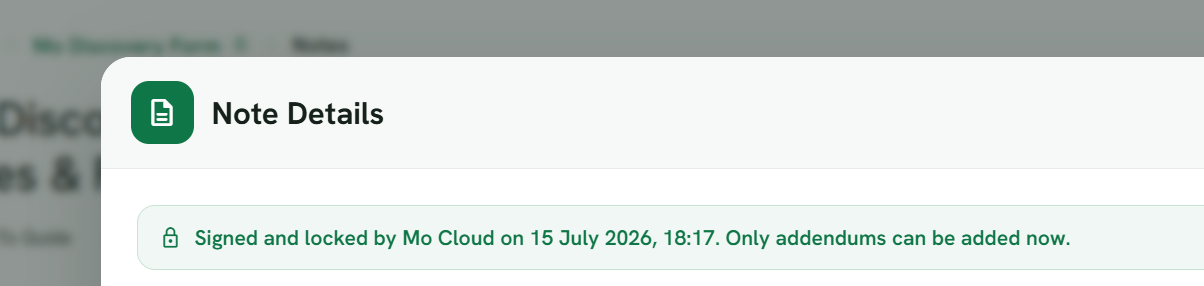
When you sign a note, you add your name to it and the note locks. From that point on the note cannot be edited or deleted. It shows a clear banner saying who signed it and when, so anyone looking at the record knows it is a finalised, professional entry rather than a work in progress.
This matters for anything you might need to stand behind later. A signed and locked note is an audit-ready record: it captures exactly what was written at the time, and it cannot be quietly changed afterwards.
Adding to a locked note with addendums
Locking a note does not mean you can never add to it again. If you need to record something new later, you add an addendum. An addendum is a dated addition to a signed note. It does not change the original text, it sits alongside it with its own date, so the history stays honest: the original stays exactly as you signed it, and your later additions are clearly marked as coming afterwards.
This gives you the best of both worlds. The original record is protected, and you still have a clean way to add follow-up information without ever rewriting what was already signed.
Notes from your clients
Notes are not just one-way. In the portal and mobile app, your clients can write their own notes and share them back with you, and they can attach files to them too. When a client sends you a note, it appears in their Notes tab on your side with a clear label showing it came from the client, so you always know which notes you wrote and which ones came from them.
This is a simple, low-pressure way for clients to send you information between sessions, whether that is a quick update, a question, or a document you asked them for.
A quick recap
- Write plain notes or structured ones from SOAP, ADIME, Initial Consultation, or Follow-up Session templates.
- Keep a note private, or share it so the client can read it in their portal.
- Attach files to keep supporting material in one place.
- Sign and lock a note to make it a permanent, audit-ready record that cannot be edited.
- Add dated addendums to a locked note without changing the original.
- Receive notes and files your clients write back to you, clearly marked as coming from them.