
Create Meal Plan Templates
Meal plan templates are reusable plans tailored for groups of clients (e.g., those with IBS, vegetarian diets) and can be customized to fit individual needs. There are two ways to create a template:
- New Template: Start from a blank template.
- Auto-generated Template: Use our recipe database to create a template automatically.
Let's go through each option in detail.
1. Creating a New Template
Step 1: Access Meal Plan Templates
- Go to Meal Plans
- Open the My Templates tab
- Click New Template
Step 2: Build Your Template
- Add recipes or foods to the template. For detailed instructions on building your meal plan template, refer to this article.
Step 3: Add Notes
-
Open the Notes tab and add information such as:
• Preparation tips
• Meal planning guidance
• Reminders
• General instructions
These notes are shared with the client when the template is assigned, so they should be written for the client and should not include private practitioner notes.
- Click Save Template when you're done.
The template will appear under My Templates, where you can reuse it, edit it, duplicate it, or assign it to a client.
2. Auto-Generate a Template
Step 1: Access Auto-Generate Feature
- Go to Meal Plans
- Open the My Templates tab
- Click Auto Generate
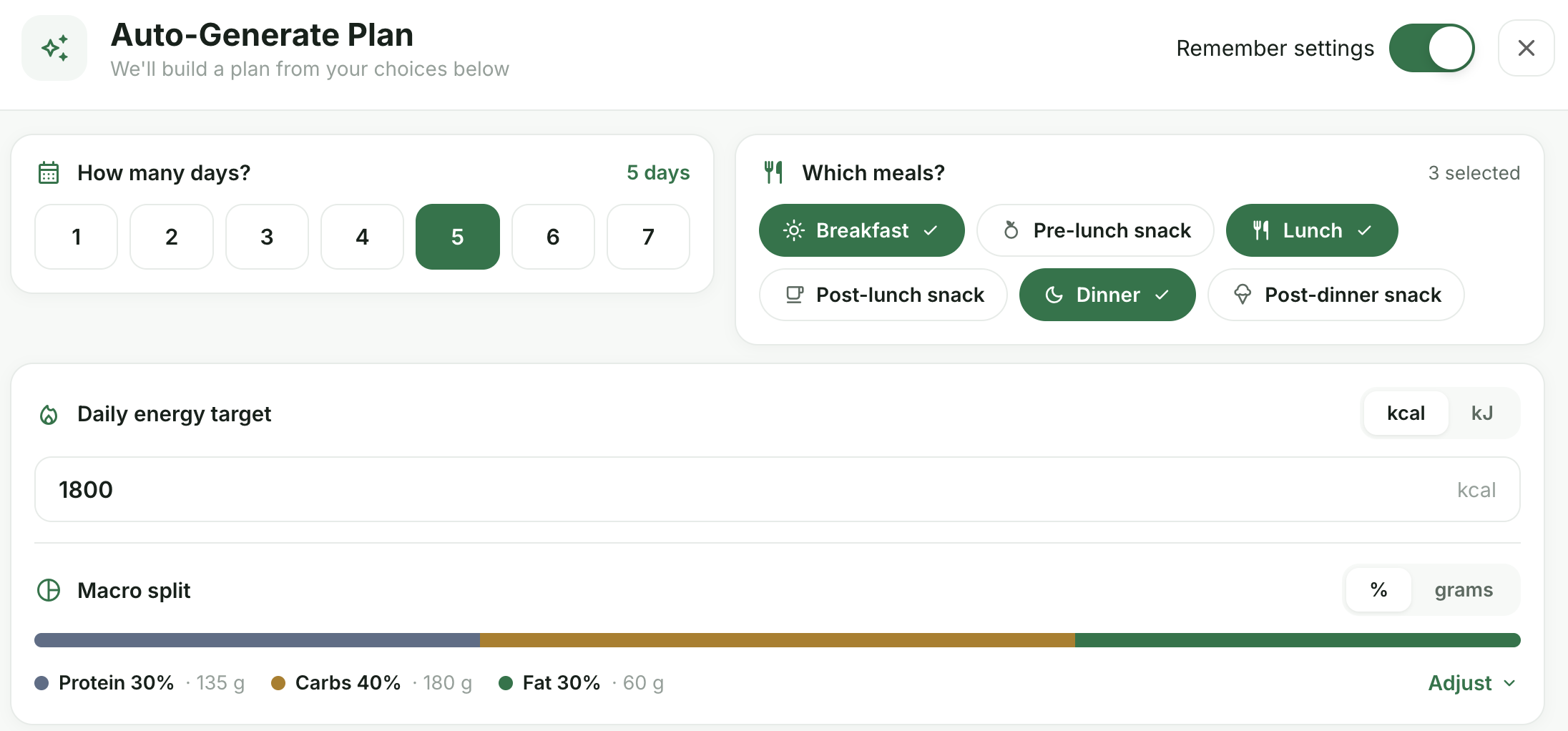
Step 2: Set the Plan Requirements
-
Choose the basic structure of the template, including:
• Number of days
• Meals to include
• Daily energy target in calories or kilojoules
• Macro split in percentages or grams
You can also enable Remember Settings to reuse the same selections next time.
*Use the optional settings to personalise the generated plan further.
Dietary Needs and Ingredients
Select dietary preferences, allergies, health requirements, preferred ingredients, and foods to avoid.
Use My Recipes First
Prioritise recipes from your own library.
Calorie Split per Meal
Control how the daily energy target is distributed across meals.
Recipe Variety
Adjust how often recipes repeat.
Nutrient Focus
Prioritise specific nutrition goals, such as higher fibre or selected micronutrients.

Step 3: Generate and Customize
- Click Generate Plan.
-
Review the generated template and make any changes needed. You can:
• Add or remove recipes
• Replace recipes
• Adjust quantities
• Move meals
• Edit the template name and details
• Add client friendly notes
Step 4: Click Save Template when you are satisfied.
The template will appear under My Templates, where you can reuse it, edit it, duplicate it, or assign it to a client.
Creating Meal Plans from Templates
Step 1: Access Meal Plans
- Go to the Meal Plans tab and select a client.
- Click the New Plan -> Import From Template... button.
Step 2: Import the Template
- Select the start date for the meal plan.
- Choose the template you want to import.
- Click Import Template.
Step 3: Finalize the Meal Plan
- The meal plan will now be populated with recipes from the chosen template.
- Save the meal plan to retain your changes.
- You can also edit recipes, add new ones, or include foods like fruits and drinks directly to the meal plan.
By following these steps, you can efficiently create and manage meal plan templates tailored to your clients' needs. ✅
Need more help?
You can learn more about Foodzilla's recipes and meal plan features here. If you have any questions, please feel free to contact us anytime. 😊