
Editing Recipes in a Meal Plan
You can modify recipes within a meal plan to suit your client's specific needs without altering the original recipe. Here’s how:
Editing Recipes in a Meal Plan
Step 1: Open the Meal Plan
- Open the meal plan for your client.
Step 2: Select the Recipe to Edit
- Click on the recipe you want to edit/personalize from the Meals section to open the recipe details popup.
-
Click on the Edit Recipe button.
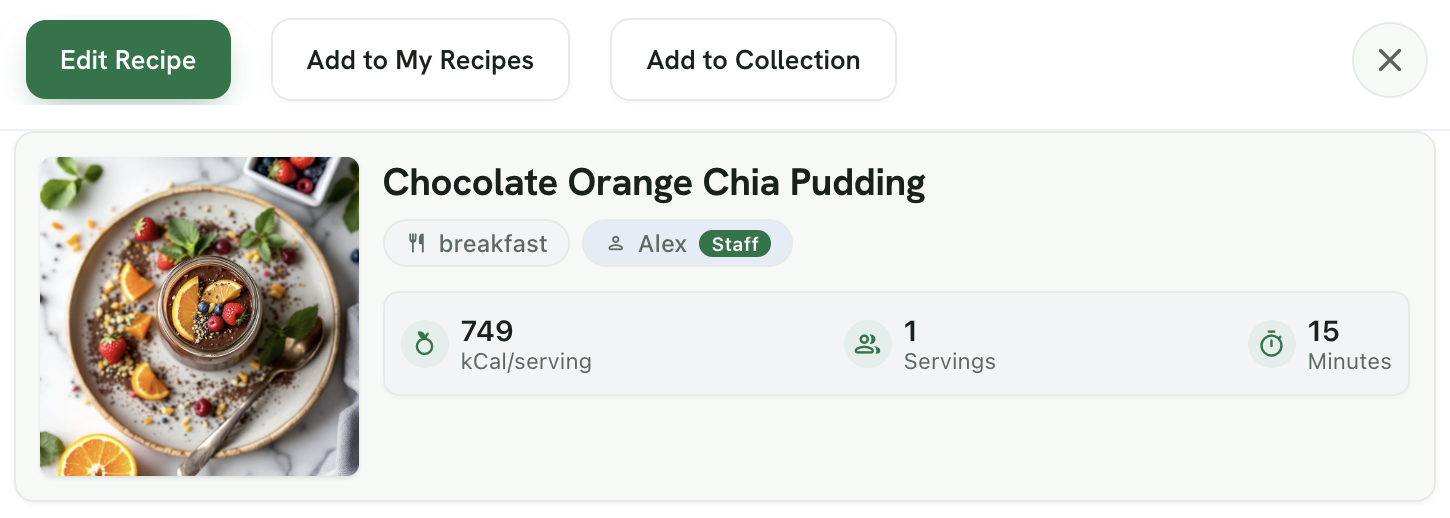
Step 3: Edit the Recipe
- The Edit Recipe modal will appear, allowing you to modify the recipe details.
- Changes made here will only affect this version of the recipe in your meal plan, not the original recipe.
Step 4: Update and Save
- Click on Update Recipe. A green banner will confirm that the recipe change has been saved.
- You will see the changes reflected in your meal plan.
-
Click on the Save Plan button to confirm your changes.
Note: The original recipe remains unchanged and can be found in My Recipes if you have saved it to your collection.
Deleting a Recipe in a Meal Plan
Step 1: Select the Recipe to Delete
- Click on "..." button of the recipe you want to delete
Step 2: Delete the Recipe
- Click on Remove.
Step 3: Confirm and Save
- The recipe will be removed from that day in the meal plan.
-
Click on Save Plan to confirm your changes.
Note: The original recipe is not deleted and remains in your collection. Go to the Recipes tab and then My Recipes to access it.
By following these steps, you can efficiently manage meal plans tailored to your clients' needs. If you have any questions, feel free to contact us. 😊