
How to Add a Meal Plan PDF Link to the Client Mobile App
This article explains how to link a client's meal plan PDF to the mobile app, making it easily accessible for your clients.
To achieve this, follow these steps:
- Generate a PDF Link for the Meal Plan
- Add the PDF as a Branding Link
Let's dive into each step in detail.
Generating a Meal Plan PDF Link
- Select the Meal Plan:
- Go to the desired meal plan and click on PDF.
- Set Dates:
- Choose the start and end dates for the meal plan PDF.
- Click the Confirm Date Range button.
- Generate the Link:
- Click on Create PDF Web Link and wait for the process to complete. Do not leave or refresh this page.
- Copy the Link:
- Once completed, a pop-up will appear confirming that the link has been generated.
- Click on View PDF in a new browser tab.
- Copy the link from the address bar of your browser.

Adding the PDF as a Branding Link
- Access Branding Settings:
- Go to the Branding tab and click on Web Links.
-
Click on the Add Web Links button.
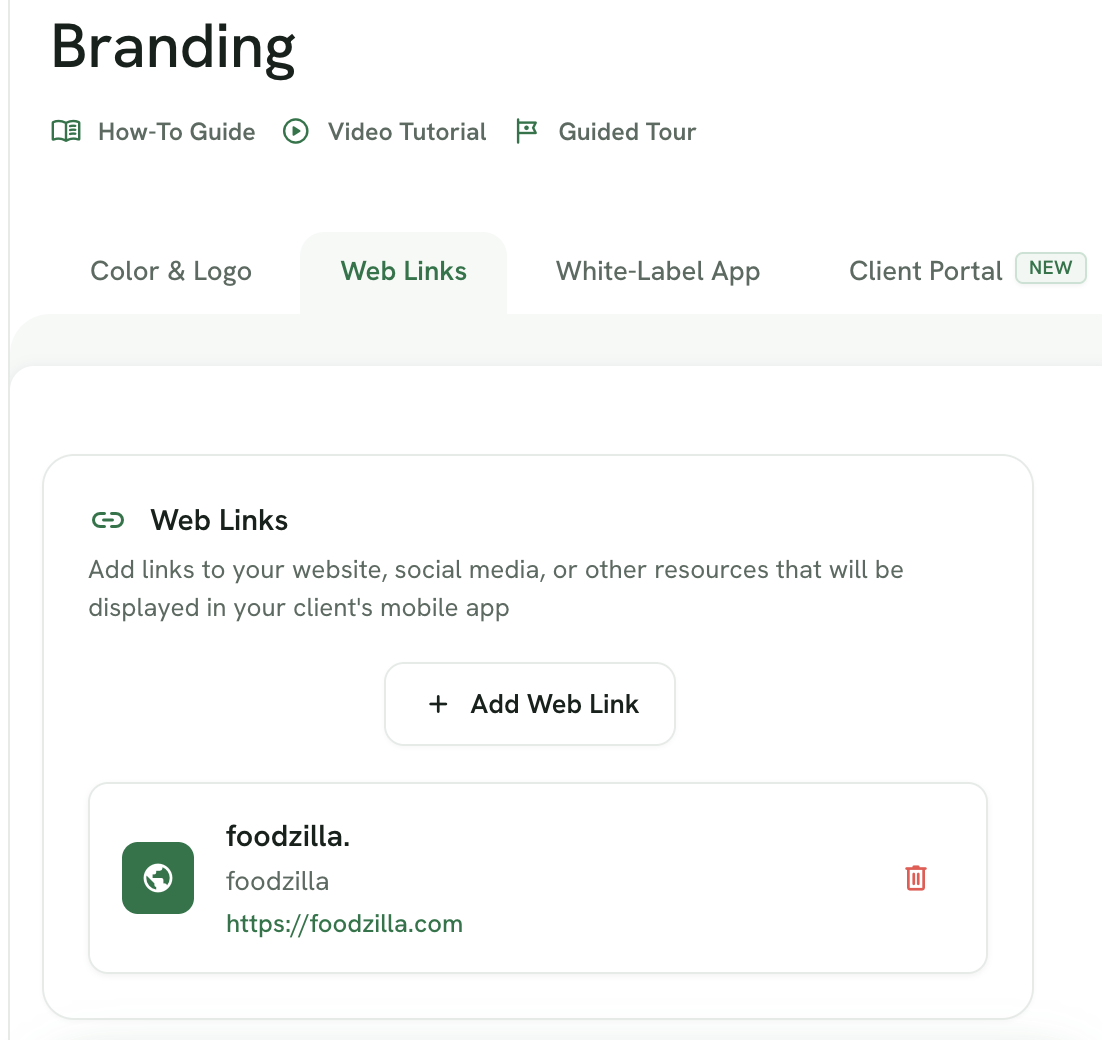
- Enter Link Details:
- Fill in the details for the link and click Add Web Link.
- Save Branding Configuration:
- Click on the Update Branding button.
Note: Ensure you have added a primary color and logo of your branding.
- Access on Mobile App:
-
After saving, the new branding color and meal plan PDF link will appear in the Profile tab of the mobile app.
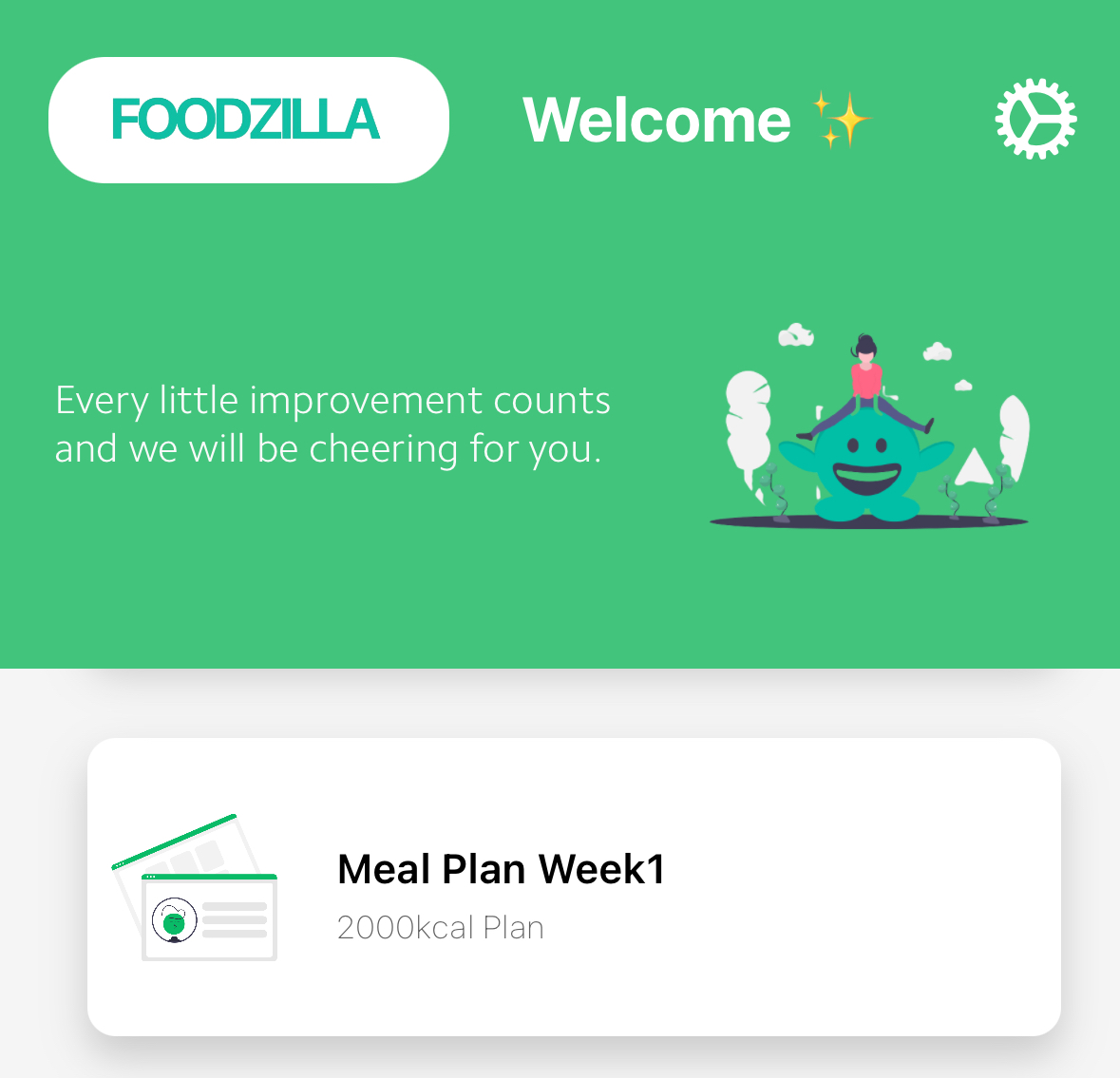
- Tap on the Meal Plan card to open it and view all meals within the mobile app.
-
Your client can now access the meal plan PDF anytime from the mobile app or client portal.